
Introduction
VMware Cloud Foundation is no longer just a roadmap discussion or a slide in a strategy deck – it is the operational backbone of modern private cloud. With the release cadence accelerating and features such as VCF Automation, Supervisor Clusters, and tighter NSX integration maturing rapidly, hands-on experience is no longer optional. It is essential.
If you are a technology enthusiast – or a consultant preparing for real-world implementations – you will naturally want to deploy VCF yourself. Not just to click through the installer, but to understand lifecycle management, workload domain design, NSX topology, and Day-Two operations in depth. The challenge? VCF is not lightweight. A proper lab traditionally requires significant compute, memory, and storage resources, often far beyond what a typical home lab can provide.
This is where Holodeck changes the equation.
Holodeck is a nested lab automation framework designed to deploy complex VMware environments in a reproducible and relatively resource-efficient way. Instead of manually building out ESXi hosts, vCenter, networking, and storage dependencies, Holodeck automates the heavy lifting. It abstracts the infrastructure plumbing so you can focus on what actually matters: architecture validation, operational workflows, and feature exploration.
Why would you use Holodeck?
- To build a fully functional VCF environment without enterprise-grade hardware
- To create repeatable Proof of Concepts for customers
- To simulate upgrade scenarios and lifecycle operations
- To test integrations such as NSX Edge clusters and Supervisor enablement
- To prepare for certifications or accreditations with realistic topologies
Most importantly, Holodeck allows you to experiment safely. Break things. Rebuild. Iterate. That feedback loop is critical when working with a platform as integrated as VCF.
As of February 15th, 2026, a new Holodeck deployment option is available specifically for VCF 9.0.2. That means you can now spin up a current-generation environment, including VCF Automation, deploy a Supervisor Cluster, and configure NSX Edge clusters – all within a structured, automated lab framework.
In this blog, we will walk through deploying a simple VMware Cloud Foundation 9.0.2 environment using Holodeck. We will not stop at Day-Zero deployment. We will continue into Day-Two operations, enabling VCF Automation, configuring a Supervisor Cluster, and deploying NSX Edge clusters to build a realistic, production-aligned topology. All through Holodeck.
If you want practical experience with VCF 9.0.2 but do not have a rack full of hardware at your disposal, this guide is for you.
What is Holodeck?
Holodeck is a toolkit designed to provide a standardized and automated method to deploy nested VMware Cloud Foundation (VCF) environments on a VMware ESX host or a vSphere cluster.
As I quote the website:
Holodeck is a toolkit designed to provide a standardized and automated method to deploy nested VMware Cloud Foundation (VCF) environments on a VMware ESX host or a vSphere cluster. These environments are ideal for technical capability testing by multiple teams inside a data center to explore hands-on exercises showcasing VCF capabilities to deliver a customer managed VMware Private Cloud. Holodeck is only to be used for a testing and training environment; it is ideal for anyone wanting to gain a better understanding of how VCF functions across many use cases and capabilities. Currently, there are two different versions of the Holodeck supported – Holodeck 5.2x supporting VCF 5.2.x and Holodeck 9.0 supporting VCF 5.2.x and VCF 9.x.
Official Holodeck documentation can be found with Github.
All passwords within the holodeck can be found in the post deployment table in the documentation
Note that these can also be found after deployment in the VCF Installer (link below)
As mentioned in the Release Notes for Holodeck 9.0.2, the following VCF Deployment-related enhancements are introduced. We will also use them during the first deployment in our lab environment:
- Added support for VCF 9.0.2.0 deployment
- VCF Installer version 9.0.2.0 can be used to deploy VCF 9.0.0.0, 9.0.1.0 and 9.0.2.0 environments.
- Introduced support for Supervisor deployment in the management domain via the new
-DeploySupervisorMgmtDomainparameter. The previous-DeploySupervisorparameter has been renamed to-DeploySupervisorWldDomain. - Added support for VCF Automation All Apps Org creation as a Day 2 operation.
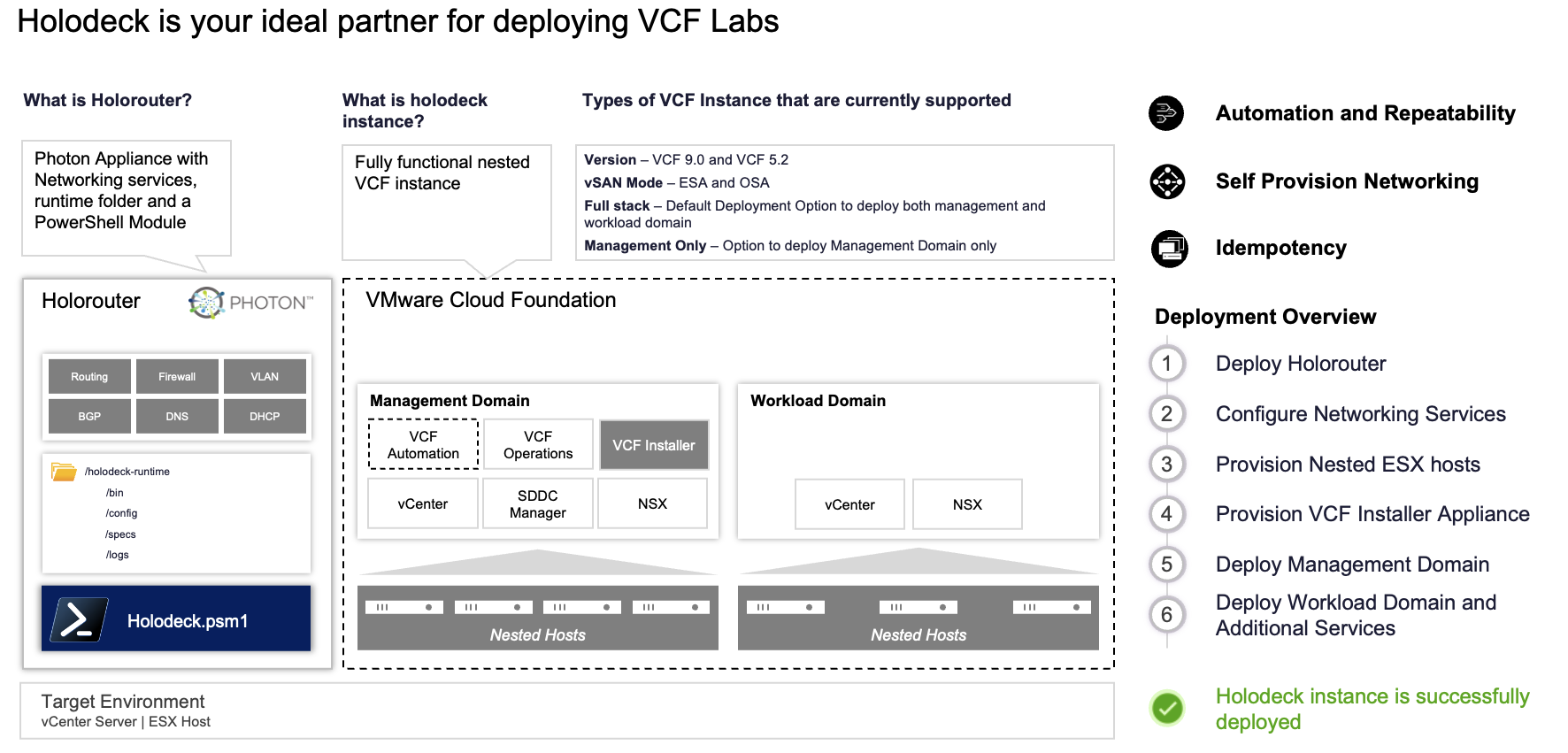
Below you can find a marketing slide below, showing all inter-related components and deployment process.
Requirements to run Holodeck
Make sure you meet the requirements to run Holodeck.
Use the information from GitHub on how to deploy a new holodeck environment and the Holodeck deployment options.
Besides your own lab hardware, you will need an offline Depot.
The Offline Depot VM can download all binaries for VCF 5.x and VCF9.0.x, for now. Additional products, such as HCX, Operations for Logs & Operations for Networks, VIDB, and even Remote Console. You need a Broadcom Download Token as well. If you are a vExpert, and have the required VCF certificates, you can do it from here.
VCF Download Tool
The VCF Download Tool is essential when working with an offline (air-gapped) Holodeck deployment, because it acts as the bridge between Broadcom’s repositories and your local depot.
What is the VCF Download Tool used for?
The VCF Download Tool is used to retrieve all required VMware Cloud Foundation binaries and store them in a local offline depot. This is critical for Holodeck deployments that do not have direct internet access or where controlled, repeatable deployments are required.
Instead of letting the VCF Installer pull components from the internet, the download tool allows you to:
- Pre-download all VCF components (vCenter, NSX, SDDC Manager, etc.)
- Store them in a centralized local repository (offline depot)
- Ensure consistent and repeatable deployments across lab environments
- Control versions and avoid unexpected upstream changes
In short, the tool decouples your deployment from external connectivity, which is especially useful for lab environments, demos, and air-gapped scenarios.
You can download the binaries here.
Check the available binaries:
./vcf-download-tool binaries list --depot-download-token-file /root/download_token.txt --vcf-version=9.0.2
The command above shows the direct location for the Broadcom Download Token, as well as the filter for the VCF version. Tip: you can check availability for other (newer, e.g. 9.1.0) versions as well.
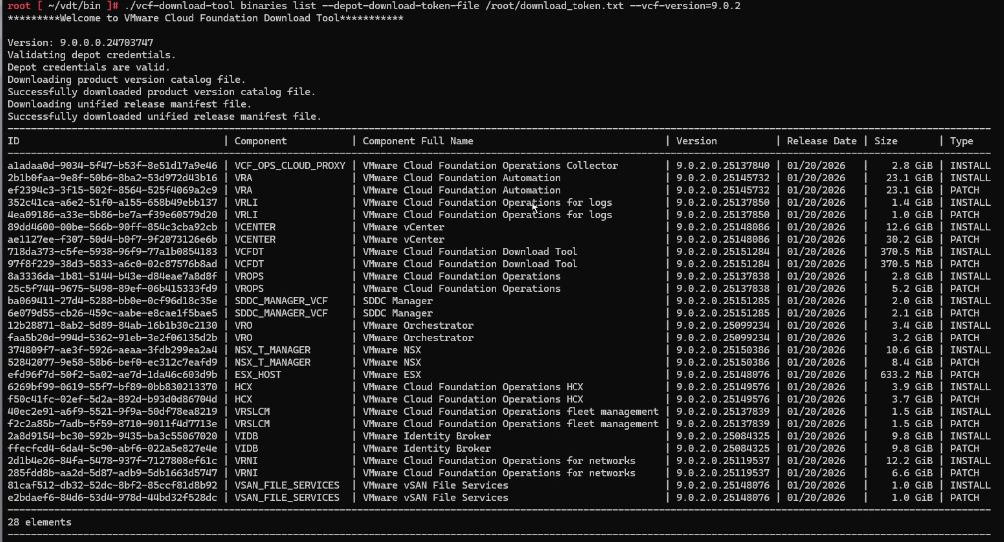
Instead of using the binaries list parameters, you can also use the binaries download parameters to download the binaries. You will need to add the binary location for the VCF Installer.
--depot-store /var/www/build
--depot-store /var/www/build --patches only
You can find more information on how to create an offline depot. Some other interesting post by William Lam and a video by Vikash to configuring an Offline Depot using a Synology NAS.
The Holorouter VM
The Holorouter is the central control plane of a Holodeck deployment, acting as the orchestration and access hub for your entire nested VCF environment.
It is responsible for:
- Deploying and managing Holodeck lab instances
- Orchestrating the full VCF deployment workflow
- Providing access to all components via the built-in webtop (browser + bookmarks)
- Handling networking, routing, and connectivity between nested components
- Serving as the operational entry point for Day-0 and Day-2 activities
In practice, the Holorouter is where you initiate, monitor, and manage your entire lab lifecycle. Without it, Holodeck would lack the automation and centralized control that make repeatable VCF deployments possible.
Holodeck Architecture Overview
A Holodeck-based VCF lab consists of three key building blocks, each with a distinct role:
| Building Blocks | Role Description |
|---|---|
| Holorouter – Control & Orchestration | The Holorouter is the brain of the environment. It deploys and manages the lab, orchestrates the full VCF installation workflow, and provides a central access point via the webtop, including a browser and preconfigured bookmarks to all components. |
| Offline Depot – Content Repository | The Offline Depot acts as the local software repository. It stores all required VCF binaries such as vCenter, NSX, and SDDC Manager, downloaded via the VCF Download Tool, enabling fully offline and repeatable deployments. |
| VCF Installer – Deployment Engine | The VCF Installer is the execution layer. It consumes binaries from the depot and performs the actual deployment and configuration of the VCF stack, including workload domains, NSX, and automation components. |
How they work together
- The VCF Download Tool populates the Offline Depot with all required binaries
- The Holorouter initiates and orchestrates the deployment
- The VCF Installer pulls binaries from the Offline Depot
- The full VCF environment is deployed and configured automatically
First download the Holorouter, and deploy the OVA in your new infrastructure.
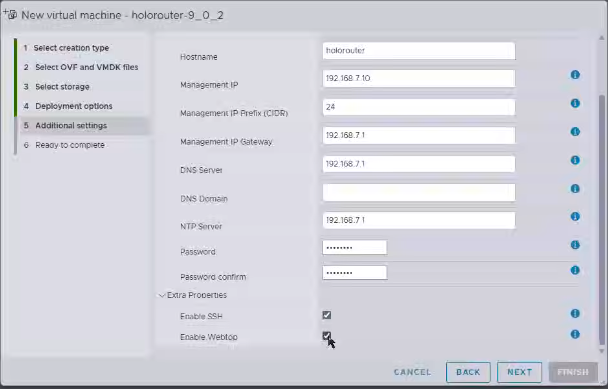
As you have gotten this far, I’m quite sure you know how to deploy an OVA.
Optional: Destroy a previous LAB
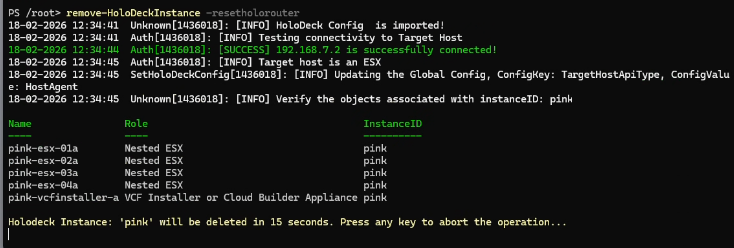
If you have gone through this whole process already, it’s good to know how to clean up previous LABs. It is easy, and the proces takes 90 seconds (!) to complete… excluding the 15 second wait that let’s you cancel the process on beforehand 🙂
Powershell: login to your holodeck router and destroy any previous labs
ssh root@192.168.7.10

Pwsh

Get-holodeckconfig

PS /root> Import-Holodeckconfig -configid xxxx
Remove-holodeckinstance -resetholorouter
Deploy a new LAB
Deploying the new LAB is done in two phases:
- Create a Holodeck Config and Import the holodeck config
- Use the config to deploy the lab
Create a Holodeck Config
Connect to the holorouter through SSH, login with root.
Run the following command:
New-HolodeckConfig
Provide the credentials of the ESXi host.
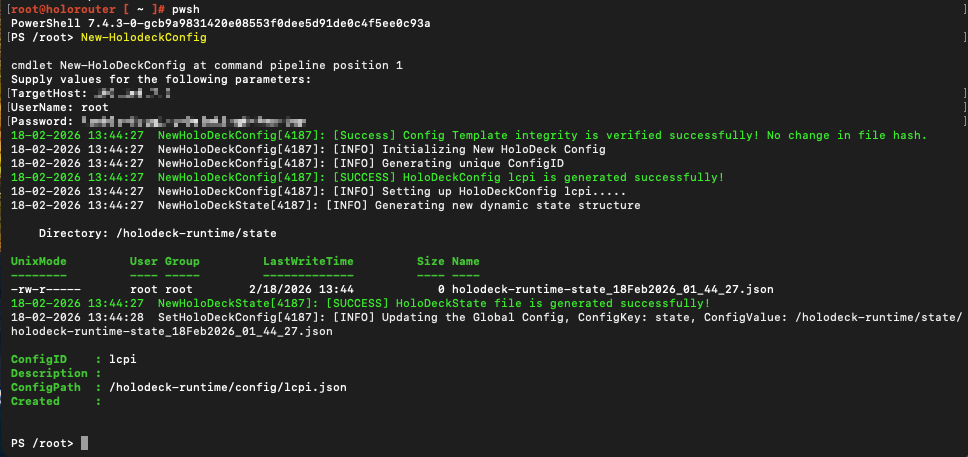
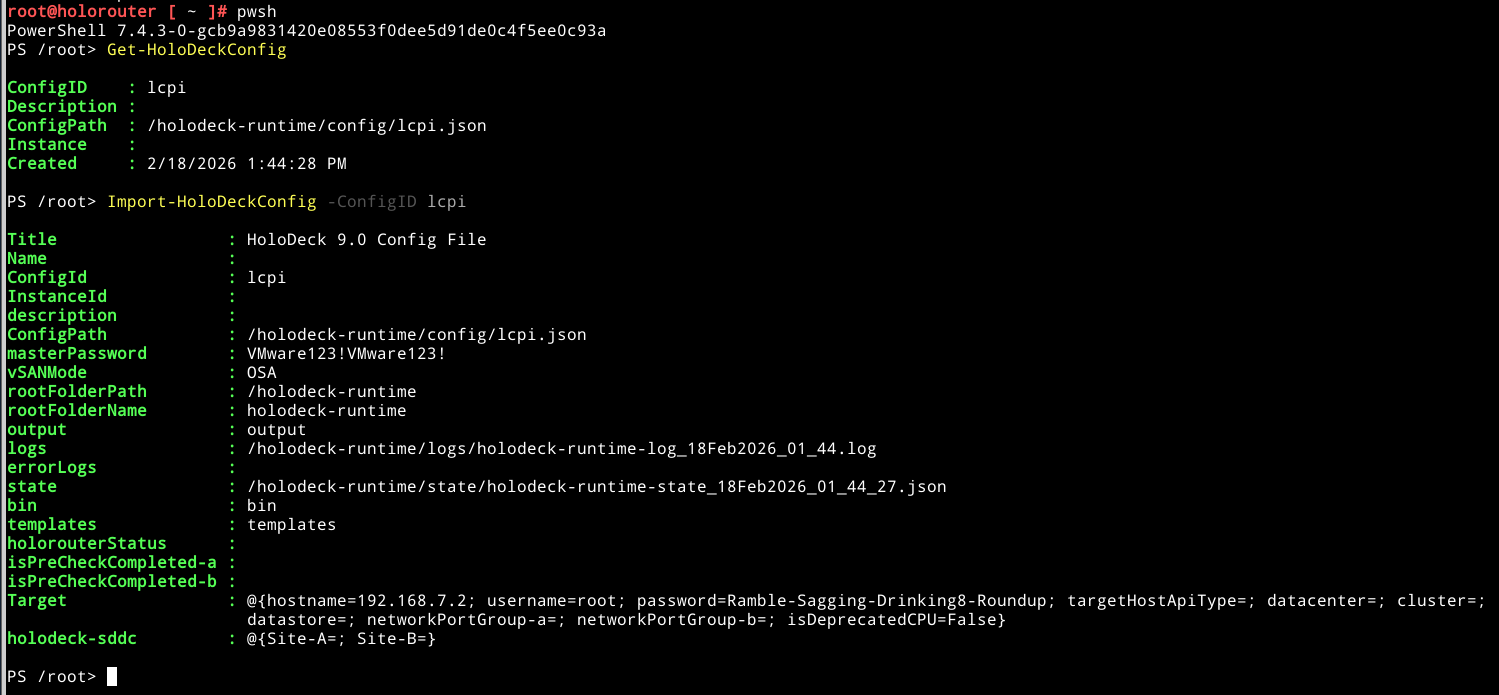
If you are curious: you can always check the contents of the json file.
Import the holodeck configuration file you just created:
Get-HoloDeckConfig
You will retrieve the ConfigID. Use it to import the HoloDeckConfig, using:
Import-HoloDeckConfig -ConfigID <ID>
Deployment : Create Holodeck Instance

Run the following command:
New-HoloDeckInstance -ManagementOnly -vSANMode OSA -DeployVcfAutomation -CIDR 10.2.0.0/20 -DNSDomain vcf.two -DepotType Offline -NsxEdgeClusterMgmtDomain -DeploySupervisorMgmtDomain -Version 9.0.2.0 -InstanceID orange
For more information on the parameters, please check the documentation here. The whole process is outlined here as well.
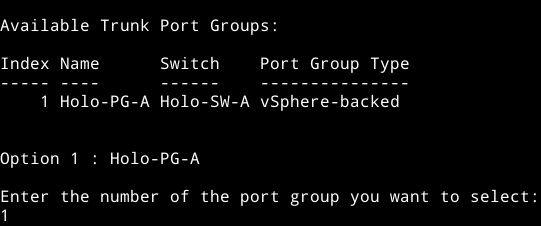
In addition to this command, you will be asked several additional questions:
- Select which Trunk Port will be used for the deployment
- Offline depot questions: the IP address, corresponding port and protocol, as well as the optional username and password

Next all required services are deployed, hosts are deployed and started, vCenter and Fleet Management are deployed. From SDDC Manager the process is continued.
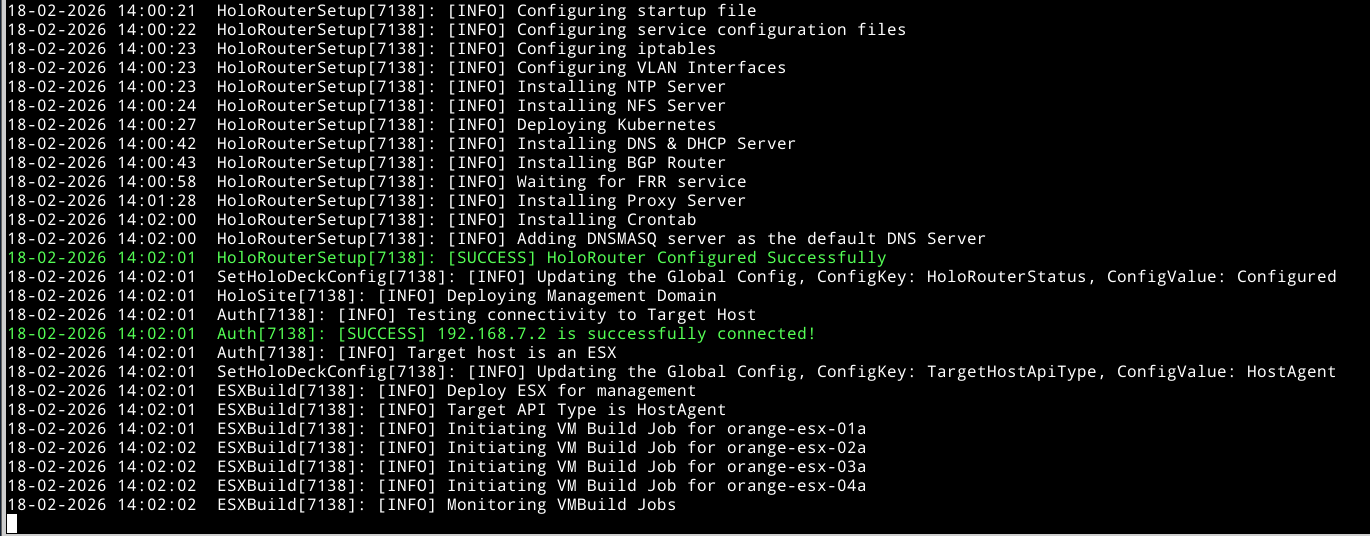
Note that in Holodeck 9.0.2 the logs are now written to the following folder (new in 9.0.2): /holodeckruntimes/logs
Note that the standard Holodeck password is: VMware123! This is a secret
Wait until the VCF Installer deployed
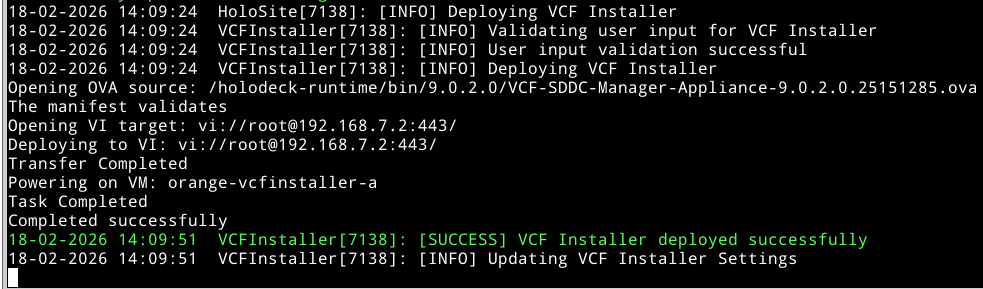
Once the VCF Installer is deployed, you can monitor progress through the holorouter webtop. The webtop can be seen as your stepping stone to the Holodeck environment.
Open your local browser and navigate to:
New in 9.0.2 : bookmarks
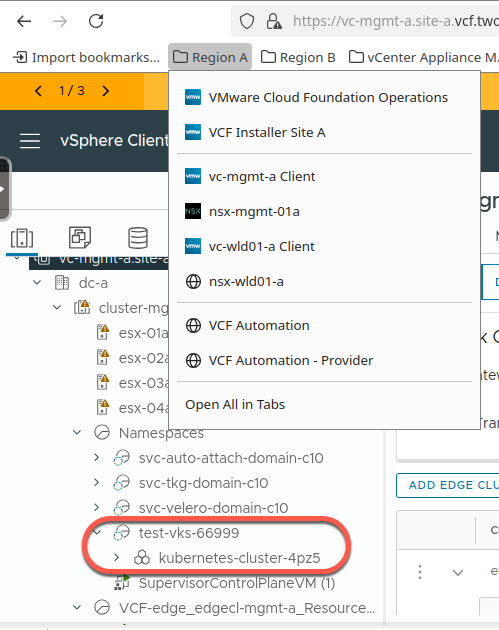
From here, goto the Applications >> Internet >> Firefox webbrowser >> Bookmarks.
And from here you will find bookmarks to all the VCF (in holodeck) components
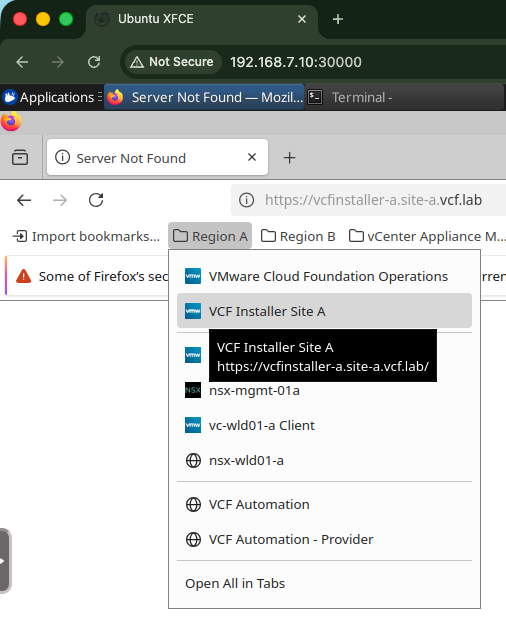
Note that this is only visible once the VCF Installer is deployed successfully
Login to VCF Installer: https://10.2.10.250 (local). Use admin@local and the default username and password for holodeck.
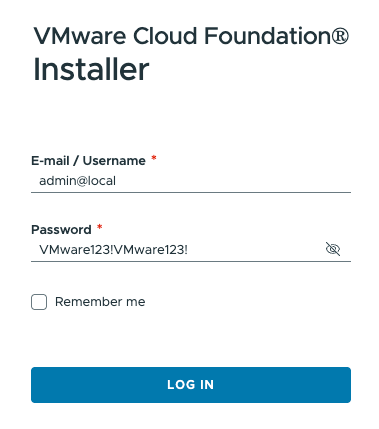
Login to VCF Installer
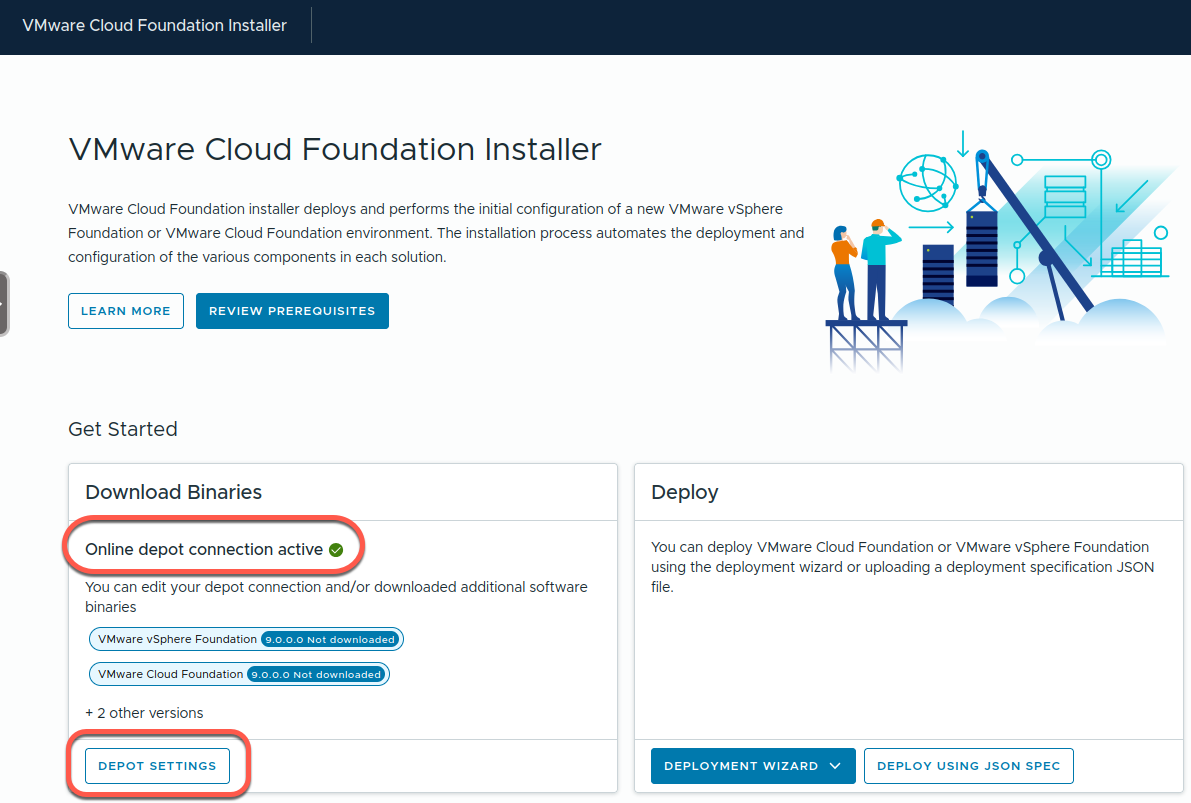
You will notice that the Online depot connection state is active. This is actually the Offline depot. The deployment allows for automatic download of all required VCF Components from the depot. You can check the deployment progress for VCF Installer in “Depot Settings”. The deployment also shows the progress per component. It refreshes every few seconds.
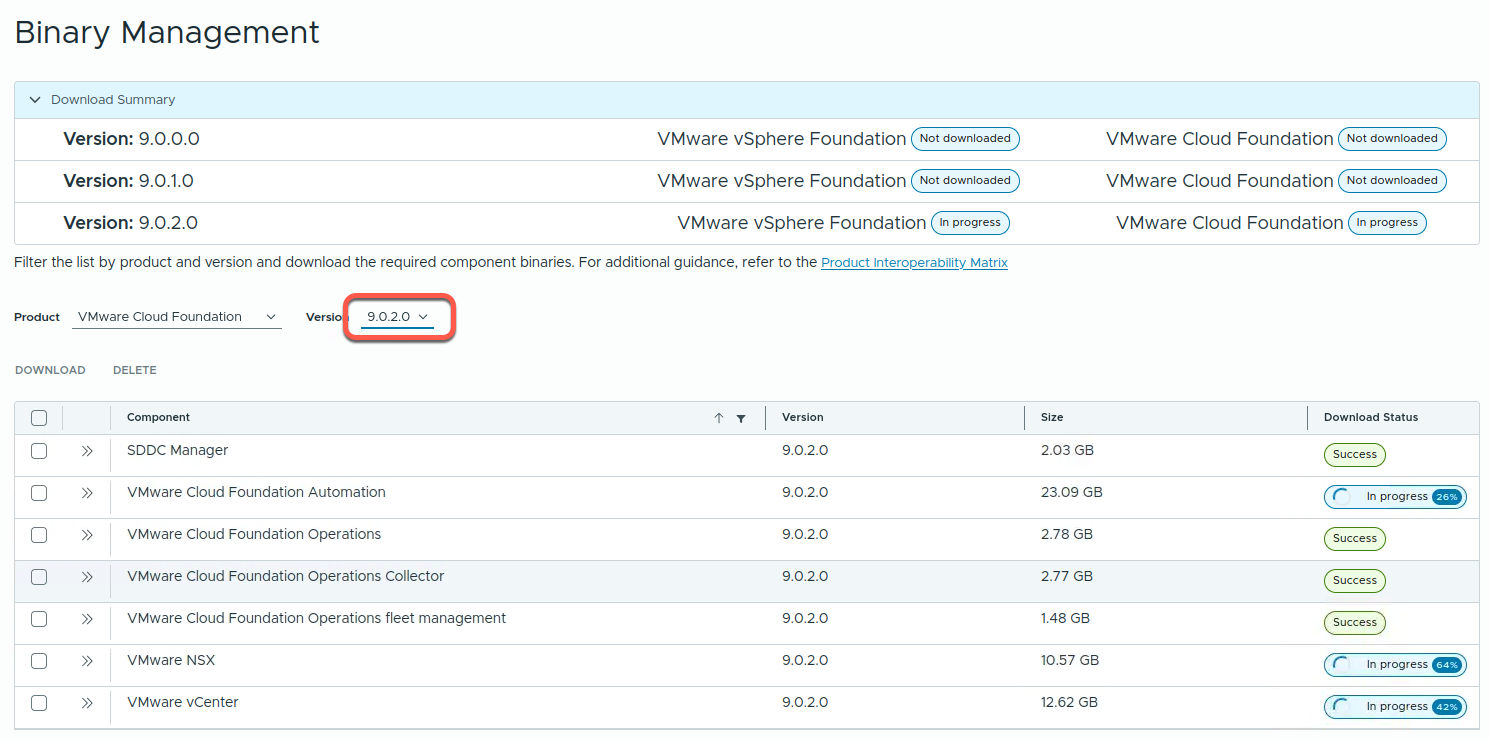
As seen above, downloads from depot to VCF Installer is in progress:
This is also visible through the holodeck deployment

The same can be seen from the GUI
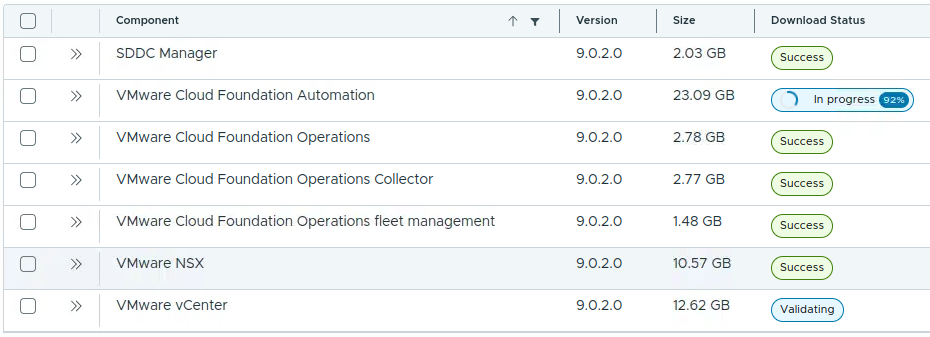
Once all downloads complete, the deployment moves on to deploy the components. Note the comment to "Open browser to the VMware VCF Installer UI https://10.2.10.250 to monitor deployment progress"

When the above is finished, the basic infrastructure components are available from the VCF Installer, but not yet deployed, or even configured.
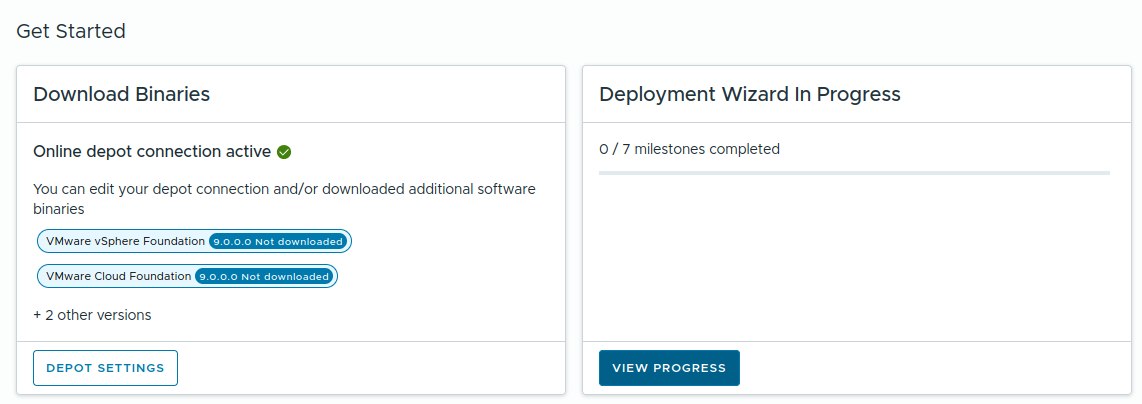
Click View Progress to allow for more details of the deployment.
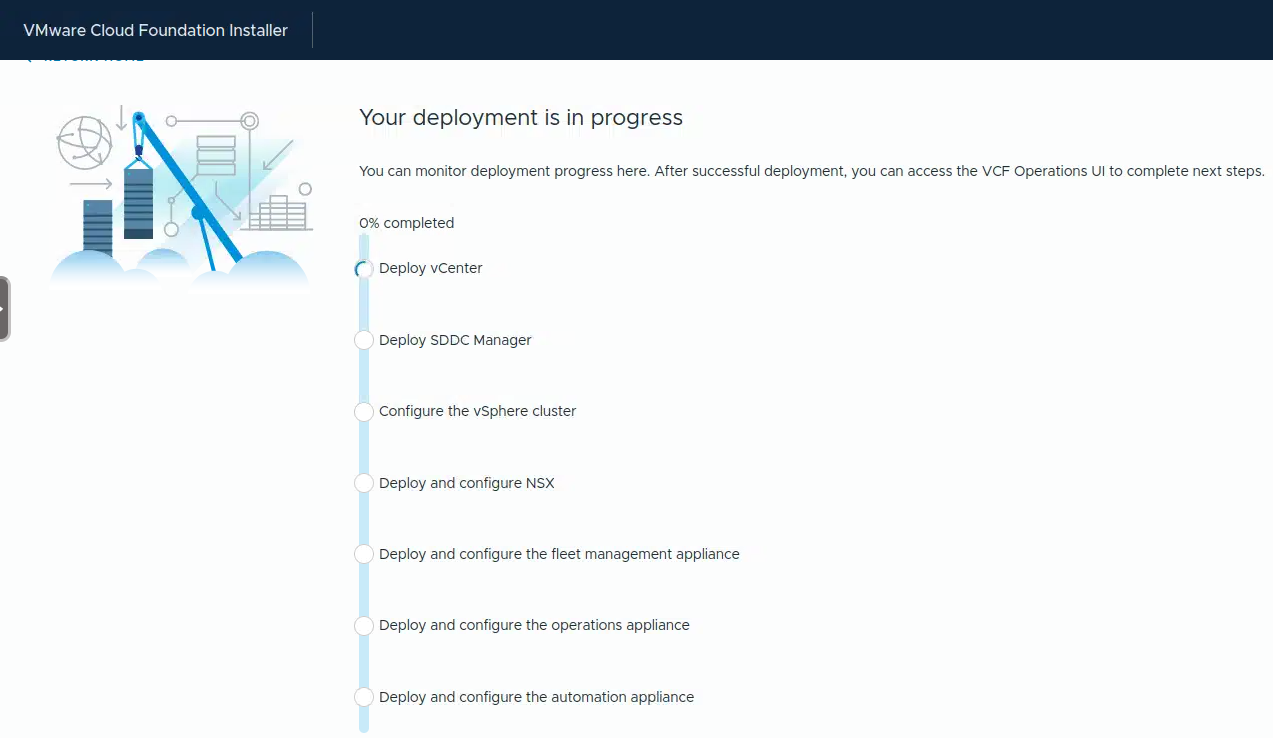
After the above completes, supervisor, as well as NSX edges deployment will take place beyond the VCF Installer
During the SDDC Manager deployment, you can log into the SDDC Manager, and will notice it is the (second) VCF Installer. This VCF Installer will become the SDDC Manager later on.
Phases:
- Deploy vCenter
- Deploy SDDC Manager
- Configures the vSphere cluster
- Deploy and configure NSX
- Deploy and configure the fleet management appliance
- Deploy and configure the operations appliance
- Deploy and configure the automation appliance
- Other…
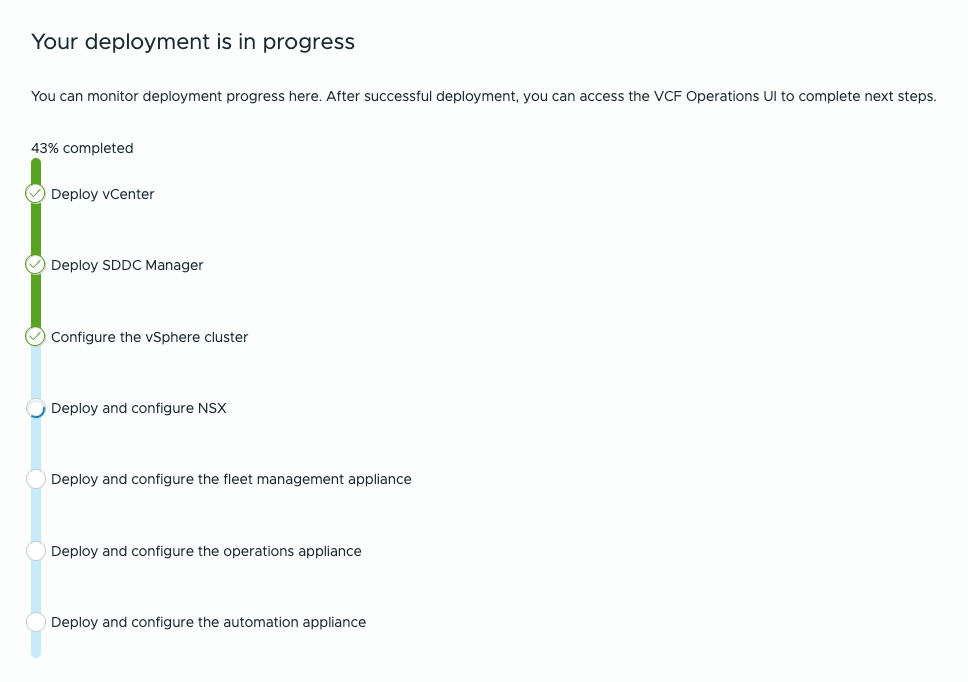
From the vSphere client you can also find deployment details

Eventually all steps are completed

From the GUI
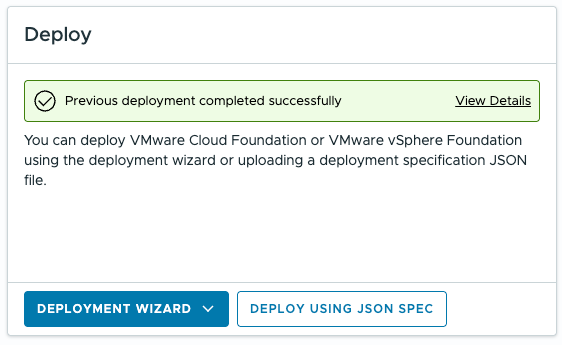
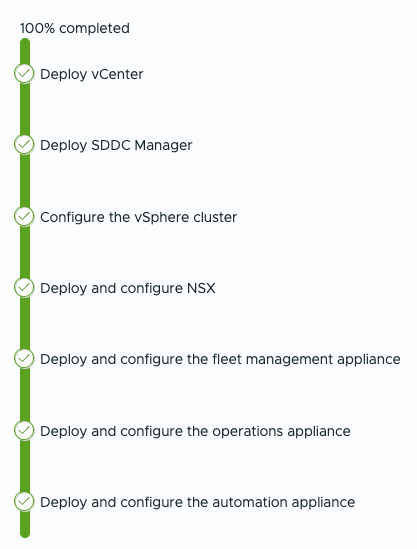
This is what your environment ends up with:
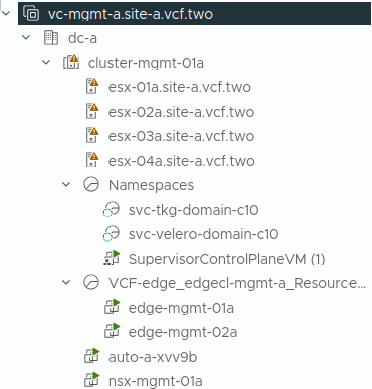
The basics requirements for your own small Software Defined DataCenter are ready
Please feel free to navigate to your NSX, vSphere and VCF Operations environment, use the bookmark bar for this
VCF (All Apps Org) Automation in HoloDeck 9.0.2
With VMware Cloud Foundation 9+, VCF Automation (VCFA) transforms infrastructure into a self-service, API-driven platform, where compute, storage, and networking are consumed on demand.
At the core of this model is the vSphere Supervisor, which enables Kubernetes directly on ESXi clusters. This turns your environment into a unified platform for VMs and containers, tightly integrated with NSX for networking, often leveraging NSX VPCs for isolation.
vSphere Namespaces act as the consumption boundary, where resources, policies, and access control come together. From here, users can deploy:
- Tanzu Kubernetes clusters
- vSphere Pods
- Virtual machines via Kubernetes APIs
New in Holodeck 9.0.2 – All Apps Org (Day 2)
Holodeck 9.0.2 introduces support for deploying a VCF Automation All Apps Organization as a Day 2 operation. This is where the platform truly becomes consumable.
Instead of stopping at infrastructure deployment, you can now enable the full automation layer with a single command:
Update-HoloDeckInstance -AddVcfAutomationAllAppsOrg -Site X -VIDomain Y
This step:
- Activates the VCF Automation service layer
- Creates the All Apps Organization, the top-level tenancy construct
- Enables self-service consumption through namespaces and catalogs
- Prepares the environment for Kubernetes-based workloads and automation pipelines
From Infrastructure to Platform – What Holodeck Actually Builds
In a Holodeck environment, this capability bridges the gap between infrastructure deployment and platform operations. You are no longer just deploying VCF components, you are enabling a realistic cloud operating model, where developers and platform teams interact with infrastructure through APIs, policies, and self-service.
Update-HoloDeckInstance -AddVcfAutomationAllAppsOrg -Site a -VIDomain management

And a few minutes later

There is already a Firefox bookmark. Be aware that if your domain is not default, the url needs to be changed.
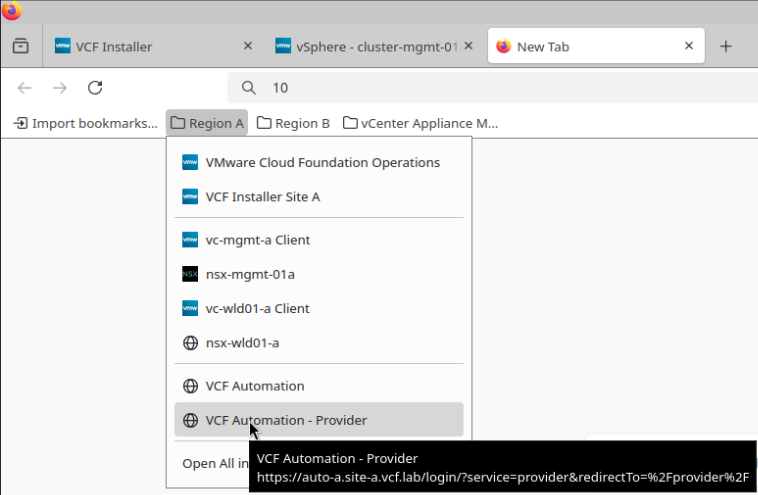
VCF Automation & Namespaces
Create All Apps Organization
Configure provider access
Define Kubernetes namespaces
Tip: Align naming conventions across NSX, VCF, and Automation early. Refactoring later is painful.
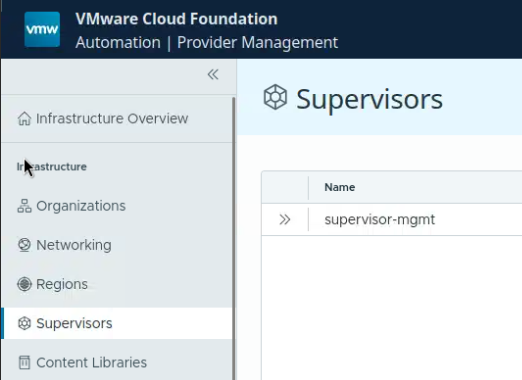
From Provider Management, you will find Supervisors. The Supervisor Cluster that was created is your control plane foundation.
Supervisor Cluster
The Supervisor Cluster is enabled via vSphere with Tanzu and runs directly on ESXi.
supervisor-mgt is typically:
- The management-domain supervisor
- Backed by NSX Networking
- Provides Kubernetes API endpoint for the platform
The Supervisor Cluster allows:
- Namespace isolation : resource + policy containers
- Direct deployment of workloads: vSphere Pods / Tanzu Kubernetes Grid (TKG) clusters
- Storage policies
- Integration with NSX networking
You can think of this as: “Kubernetes-native control of vSphere resources”
Eventually, you will find your Organization. As you can see, a region was created, an organization, an IP Space, the Provider Gateway was created as well as Region network settings
VCF Services – Provider Management Layer
This is where things shift from infrastructure to cloud model.
Core constructs for VCF Services:
- Region
- Organization
- IP Space
- Provider Gateway
- Region Network
These are part of the multi-tenant abstraction model inside VCF.
Relationship to Supervisor
This layer consumes Supervisor capabilities and wraps them into:
| VCF Services Concept | Backed by |
|---|---|
| Region | One or more Workload Domains (vSphere + NSX) |
| Organization | Logical tenant mapped to namespaces/projects |
| IP Space | NSX IPAM |
| Provider Gateway | NSX Tier-0/Tier-1 |
| Region Network | NSX segments |
Organization > Namespace Consumption
Now we get to tenant-level consumption.
Flow
- Provider defines:
– Region
– Org
– Networking boundaries - Organization consumes:
– Namespaces (mapped to Supervisor namespaces)
– Policies (compute, storage, networking)
Mapping
| Concept | Actually implemented as |
|---|---|
| Org Namespace | vSphere Namespace |
| Org Network | NSX segment |
| Org Policies | vSphere + NSX policies |
Important: a namespace is the bridge between infra and developer consumption
After enabling VCF Automation using the All Apps Org workflow, the environment evolves beyond a simple infrastructure deployment. What Holodeck delivers at this stage closely resembles a real-world cloud operating model, similar in concept to platforms like VMware Cloud Director. For a comparison with VMware Cloud Director, check the following table
VCF Automation vs VMware Cloud Director
| Aspect | VCF Automation (VCFA) | VMware Cloud Director (VCD) |
|---|---|---|
| Primary Focus | Platform engineering and private cloud automation | Service provider multi-tenancy and cloud services |
| Consumption Model | API-driven, Kubernetes-aligned, self-service catalogs | Portal-driven tenant consumption (UI and API) |
| Core Abstraction | Namespaces and Kubernetes constructs | Organizations, VDCs, and vApps |
| Workload Types | VMs, containers, Kubernetes clusters | Primarily virtual machines, with optional Kubernetes extensions |
| Networking Model | NSX VPCs, IP Spaces, Provider Gateways | NSX-backed Org VDC networks and Edge Gateways |
| Typical Use Case | Enterprise private cloud and internal platform teams | Managed service providers and external tenants |
In other words: VCF Automation is built for internal platform engineering and Kubernetes-aligned consumption, while VMware Cloud Director is designed for multi-tenant service provider environments.
Anyway, behind the scenes, several foundational building blocks are automatically created and wired together.
Once the process completes, you will find your Organization (tenant) available in VCF Automation. This is not just a logical container, it represents the starting point for multi-tenant, self-service consumption.
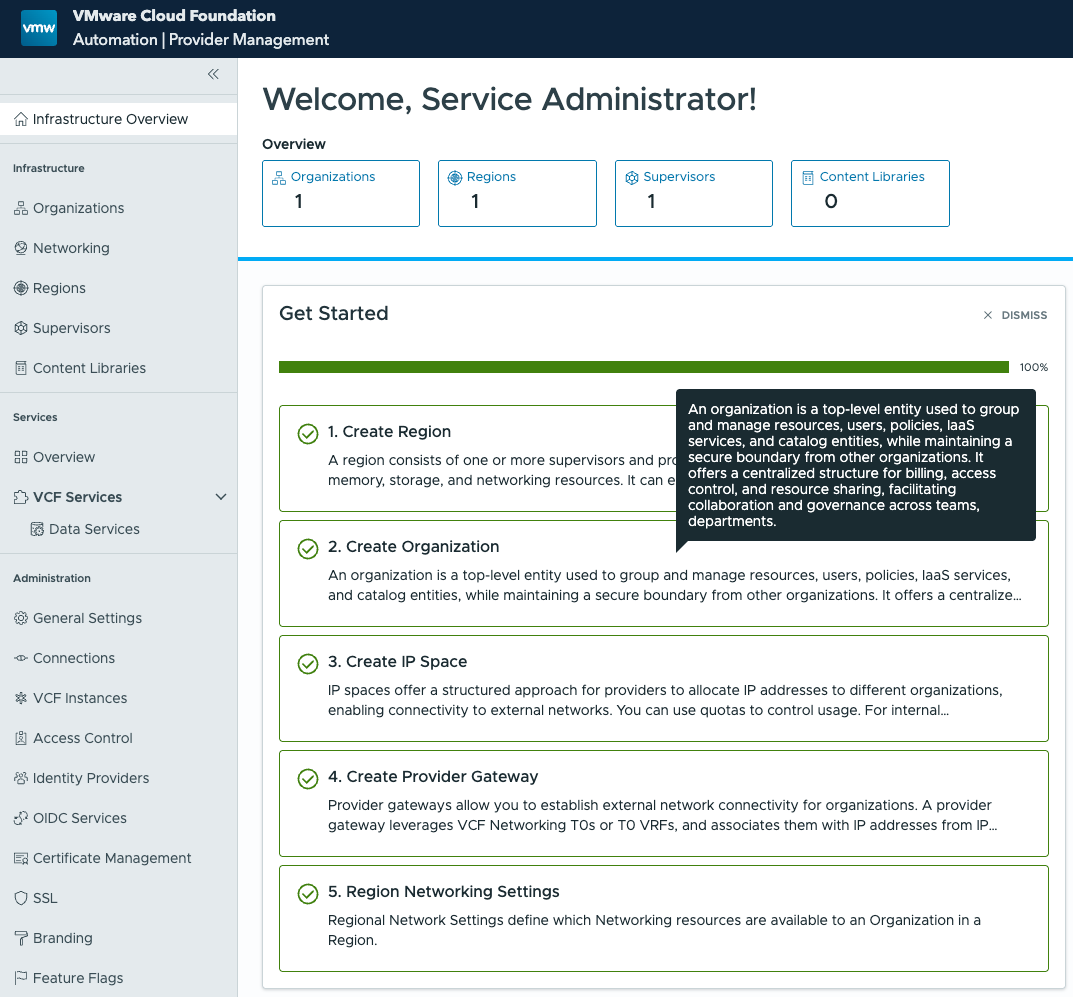
As part of this initialization, the following components are deployed and configured:
- Region – Defines the geographical and logical boundary for resource consumption and policy application
- Organization (Tenant) – The primary consumption entity, comparable to a tenant in a cloud platform
- IP Space – Provides controlled IP address management for tenant workloads
- Provider Gateway – Acts as the north-south connectivity layer, enabling external access and routing
- Region Network Settings – Establishes the networking baseline, integrating NSX-backed connectivity and policies
These components form the foundation for namespace consumption and Kubernetes-based workloads. From here, platform teams can define access, allocate resources, and expose services, while developers interact with the environment through self-service and APIs.
In practical terms, this is the point where your Holodeck lab stops being “just a deployment” and starts behaving like a fully functional private cloud platform.
What was created above, can also be seen from NSX
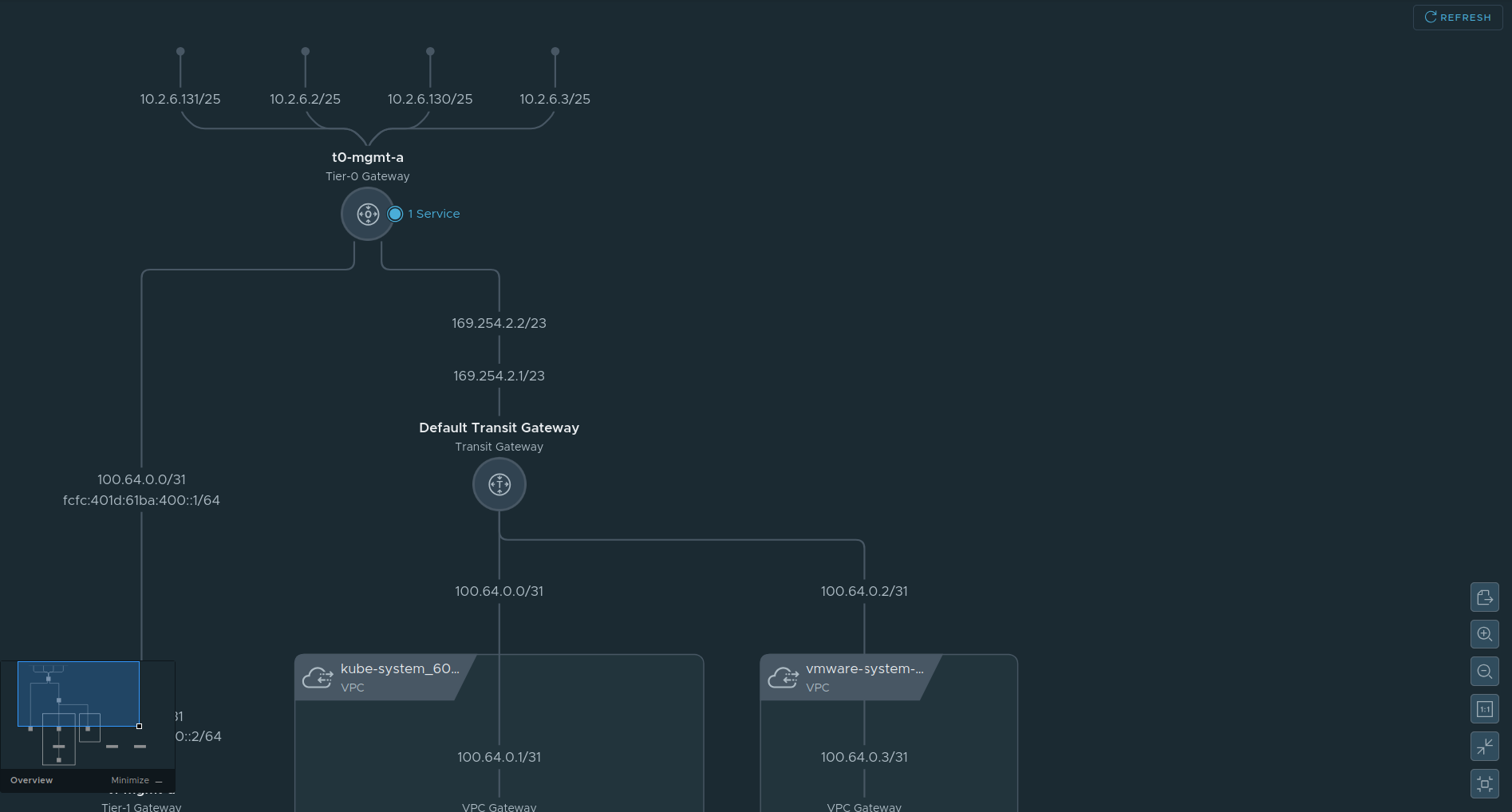
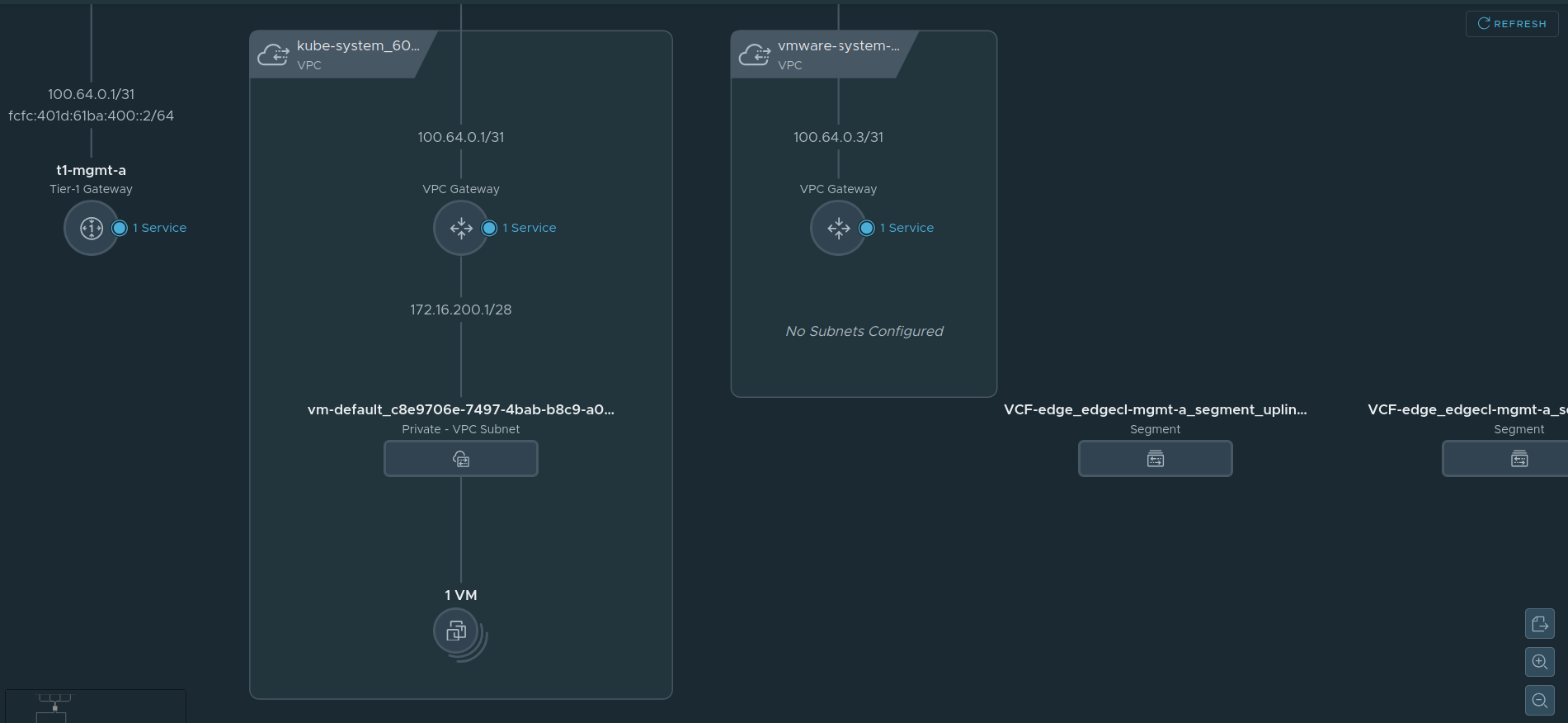
VCF Edge segments are also created.

Creating a Kubernetes Cluster in VCF Automation
Once your All Apps Organization and namespace are ready, you can provision a full Kubernetes cluster inside VCF Automation. The process leverages creating a Namespace from the Supervisor Cluster, from here create the Kubernetes cluster, from which you can run your workload.
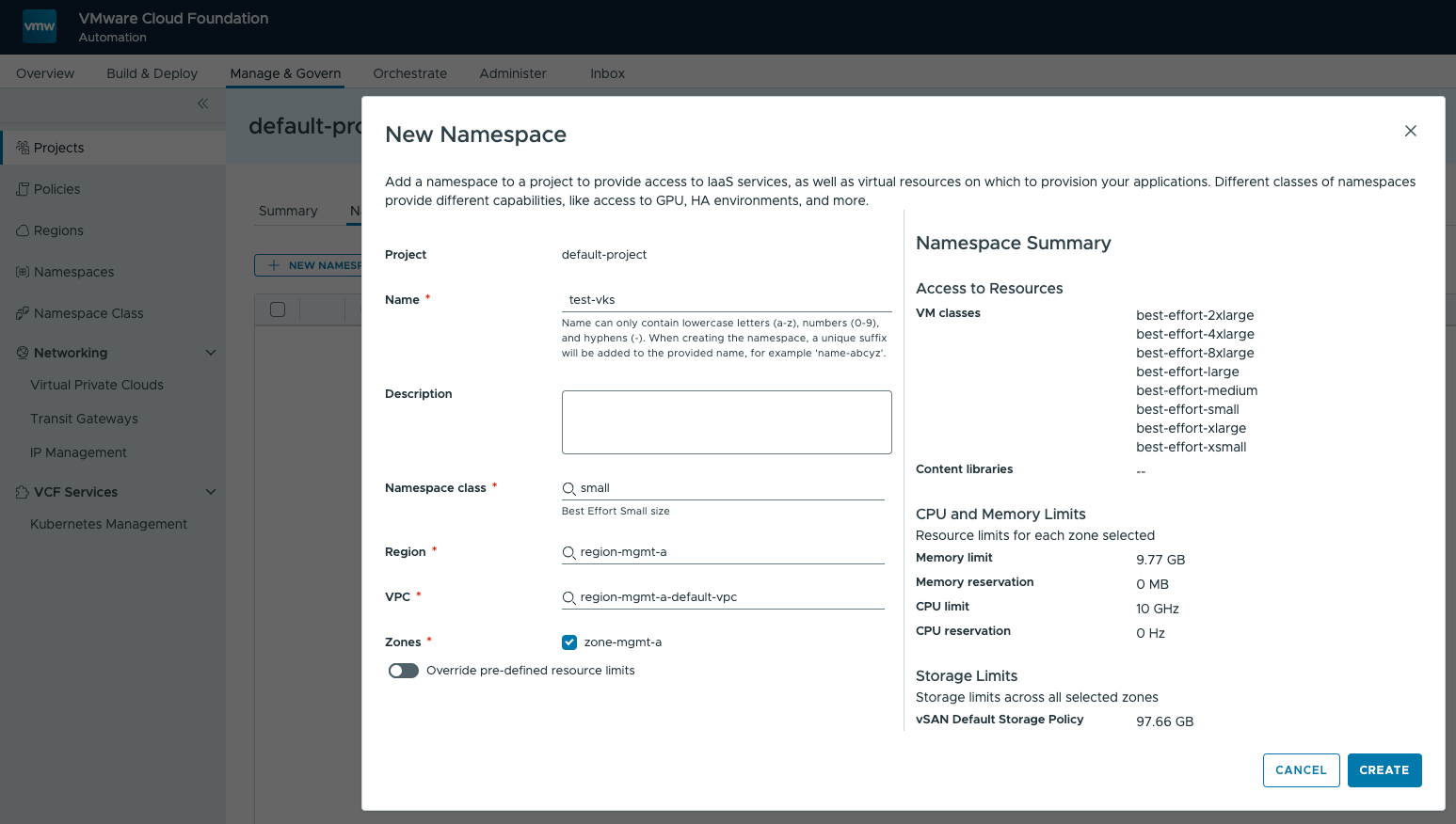
One of the steps: select the T-shirt sizes (Namespace class)
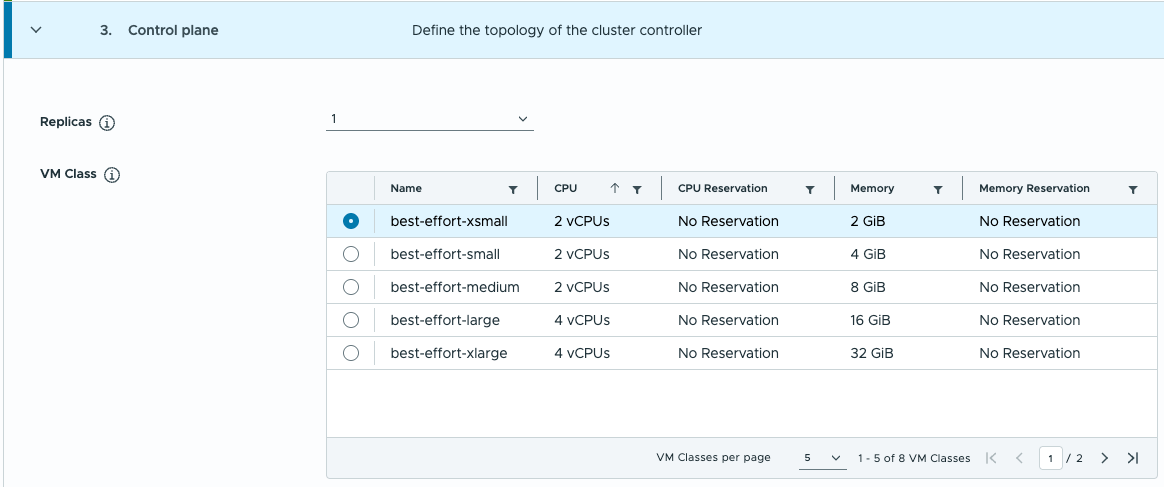
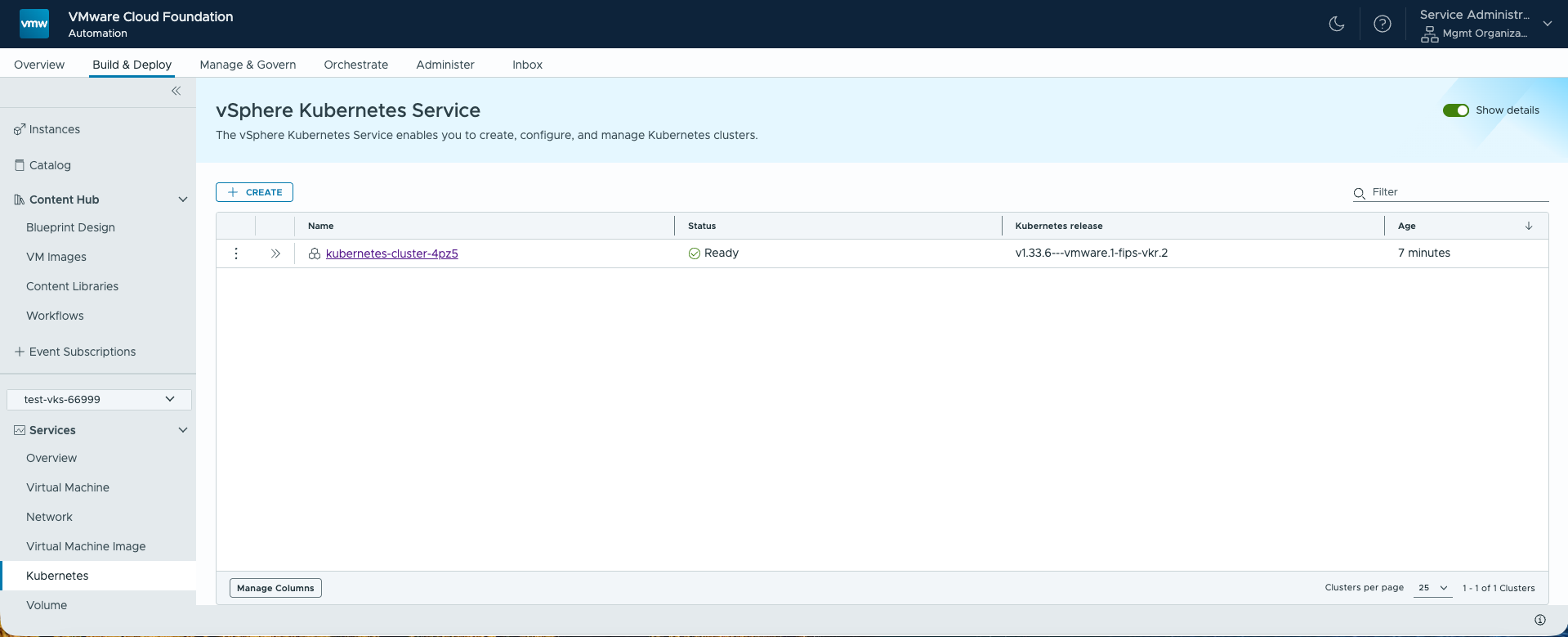
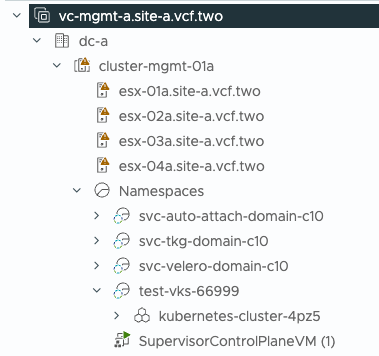
For those VI Admins: this is what we end up with, seen from the vSphere Client it is.
The Kubernetes cluster appears as a resource pool.